In 2026, building a professional website no longer requires coding skills or a big budget. WordPress powers over 43% of all websites on the internet, from personal blogs to major enterprise sites. This open-source platform is free, flexible, and beginner-friendly, making it the top choice for millions.
Whether you’re launching a blog, portfolio, business site, or online store, this comprehensive WordPress tutorial for beginners will guide you from zero to a live WordPress tutorial for beginners .We’ll cover everything step by step, with actionable tips and real-world examples.
By the end, you’ll have a fully functional site—and the confidence to customize it further. Let’s get started!

Why Choose WordPress in 2026?
WordPress dominates the web for good reasons:
- Completely Free and Open-Source: Download and use it without costs.
- Massive Community Support: Over 65,000 free plugins and thousands of themes.
- SEO-Friendly Out of the Box: Built-in features help with search rankings.
- Scalable for Any Site: Handles small blogs to high-traffic e-commerce stores via WooCommerce.
- Beginner-Friendly Updates: Full Site Editing (FSE) and block-based tools simplify design without code.
In 2025 data, WordPress held around 43.4% market share, with steady growth expected into 2026.
Common objection: “Isn’t WordPress outdated?” No—it’s evolving rapidly with AI integrations, better performance, and enhanced security.
WordPress.com vs. WordPress.org: Which One Should You Choose?
Beginners often confuse these two.
- WordPress.com: Hosted platform. Easy setup, but limited customization and monetization on free plans.
- WordPress.org: Self-hosted (recommended for most). Full control, unlimited plugins/themes, and better for AdSense or affiliates.
For this tutorial (and maximum flexibility), we’ll use WordPress.org.
Step 1: Choose and Set Up Hosting
Your website needs a host—think of it as rented server space.
Top recommendations for beginners in 2026:
- Hostinger: Affordable, fast, with one-click WordPress install and excellent support. Plans start low, with free domain/SSL often included. Get started with Hostinger here—it’s my top pick for value and ease.
Other strong options: SiteGround (great support), Bluehost (official WordPress recommendation), or Kinsta (premium managed hosting).
Actionable Tips for Choosing Hosting
- Look for one-click WordPress installation.
- Ensure free SSL certificate (for HTTPS security).
- Prioritize 99.9%+ uptime and fast load times.
- Check for automatic backups.
Pro tip: Avoid free hosting—it often includes ads and limits growth.
Step 2: Register a Domain Name
Your domain is your website address (e.g., yoursite.com).
Most hosts like Hostinger offer a free domain for the first year.
Tips:
- Keep it short, memorable, and brandable.
- Use .com if available.
- Include keywords if relevant (e.g., for a baking blog: bestbakingtips.com).
Step 3: Install WordPress
With good hosting, this takes minutes.
- Log into your hosting control panel (cPanel or similar).
- Find the WordPress installer (often “Softaculous” or “One-Click Install”).
- Select your domain.
- Set admin username/password (avoid “admin” for security).
- Click install.
Done! You’ll get login details for your dashboard.
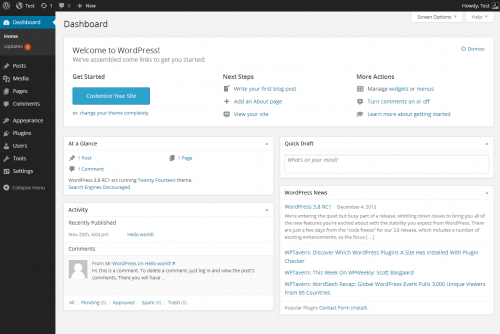
Dashboard screen – Documentation – WordPress.org
Step 4: Logging In and Exploring the WordPress Dashboard
Access your site at yourdomain.com/wp-admin.
The dashboard is your control center:
- Posts: For blog articles.
- Pages: For static content (Home, About, Contact).
- Media: Upload images/videos.
- Appearance: Themes and customization.
- Plugins: Add features.
- Settings: General site config.
Take time to click around—WordPress is intuitive.
Step 5: Choosing and Installing a Theme
Themes control your site’s look.
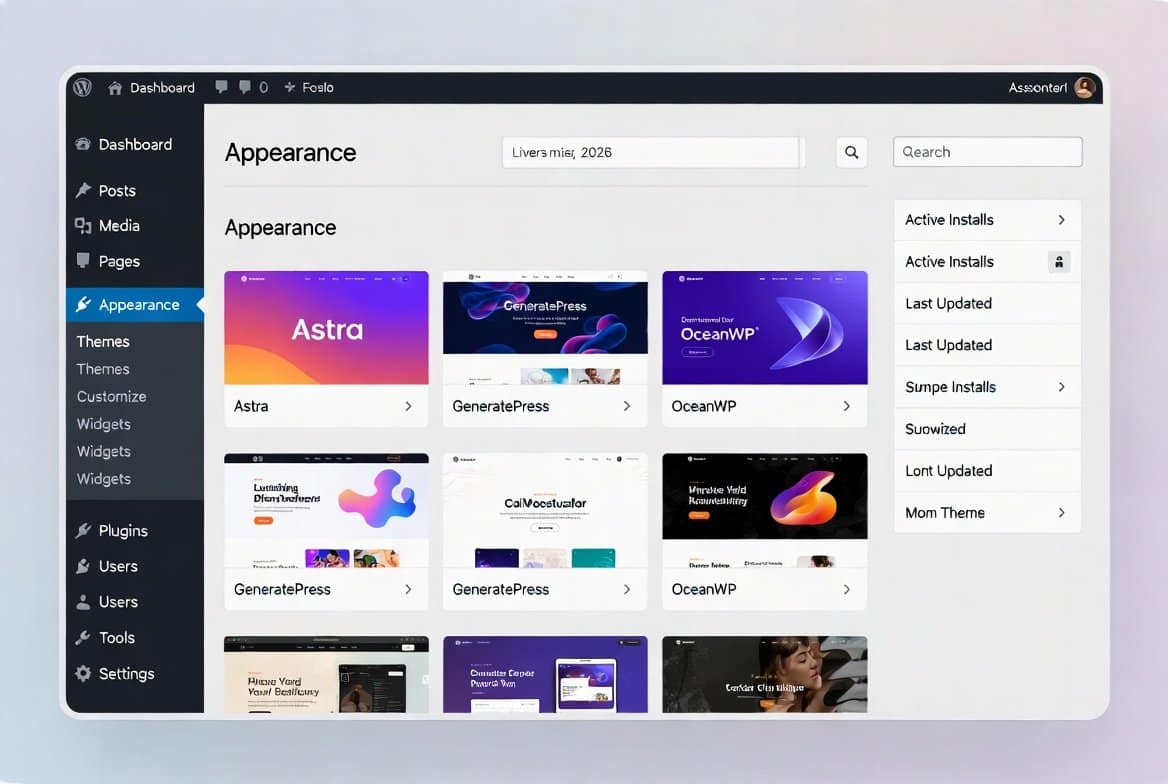
2026 top free themes:
- Astra (lightweight, fast)
- Neve (versatile, mobile-first)
- Blocksy (modern block support)
- GeneratePress (SEO-optimized)
Premium options: Divi, Avada, or Elementor-compatible themes.
How to Install a Theme
- Go to Appearance > Themes > Add New.
- Search and install.
- Activate.
Then customize via Appearance > Customize.
For full control, use a block theme with Full Site Editing.
Step 6: Essential Plugins to Install
Plugins add functionality.
Must-have for beginners in 2026:
- Yoast SEO or Rank Math: Optimize for search engines.
- WP Rocket or LiteSpeed Cache: Speed up your site.
- UpdraftPlus: Automatic backups.
- Wordfence or Solid Security: Protection against threats.
- WPForms: Easy contact forms.
- Smash Balloon: Social media feeds.
- MonsterInsights: Google Analytics integration.
If selling products: Explore digital options on Gumroad.
Installation Steps
- Plugins > Add New.
- Search, install, activate.
Start with 5-10 plugins—too many slow your site.
Step 7: Creating Your First Pages and Posts
Pages (Static Content)
- Pages > Add New.
- Add title (e.g., “Home”).
- Use the Block Editor (Gutenberg) to add text, images, buttons.
- Publish.
Set your homepage: Settings > Reading > Static page.
Posts (Blog Content)
- Posts > Add New.
- Write title and content.
- Add categories/tags.
- Featured image.
- Publish.
How To Make a WordPress Website – For Beginners
Step 8: Customizing Your Site Design
Use the Customizer or Full Site Editing:
- Change colors/fonts.
- Edit header/footer.
- Add menus (Appearance > Menus).
For advanced design without code: Consider page builders like Elementor (free version available).
Step 9: Optimizing for SEO and Performance
- Install Yoast/Rank Math—follow on-page suggestions.
- Use descriptive titles/URLs.
- Compress images (with Smush plugin).
- Enable caching.
Test speed with Google PageSpeed Insights.
Step 10: Securing Your WordPress Site
- Strong passwords.
- Limit login attempts (plugin like Limit Login Attempts).
- Regular updates.
- SSL enabled.
Step 11: Launching Your Site and Next Steps
- Remove “Coming Soon” mode if using one.
- Submit to Google Search Console.
- Start creating content consistently.
To monetize: Set up Google AdSense once you have traffic.
For more tips, subscribe to my newsletter at Writers Hive—get weekly insights on blogging, SEO, and passive income.
Advanced Tips for Growth in 2026
- Integrate AI tools for content ideas.
- Build an email list (with plugins like OptinMonster).
- Explore WooCommerce for e-commerce.
- Use analytics to track what works.
Common objection: “It takes too long to see results.” Consistency pays off—many sites gain traction in 6-12 months.
Conclusion
You’ve now learned how to build a WordPress site from scratch. WordPress empowers anyone to create professional websites affordably.
Start today: Grab hosting via Hostinger, install WordPress, and publish your first page.
Your online presence awaits—what will you build?
TAMZIDUL HAQUE 🖋️Writer-
Subscribe to my newsletter for more guides: https://writers-hive.beehiiv.com/
WordPress vs Medium 2025: Which Blogging Beast Will Skyrocket Your USA & Canada Audience?
Unlock #1 Rankings: 10 WordPress SEO Tips for New Bloggers in Canada 2025
Best Schema Plugins for WordPress in 2025: Unlock Rich Snippets and Skyrocket Your Rankings
Frequently Asked Questions (FAQ)
Is WordPress free?
Yes, WordPress.org is completely free. You’ll pay for hosting (from $3/month) and optional premium themes/plugins.
How long does it take to learn WordPress?
Basics in a few hours; full proficiency in weeks with practice. This tutorial covers the essentials.
Can I make money with a WordPress site?
Absolutely—via AdSense, affiliates, products, or services. Many bloggers earn full-time income.
Is WordPress good for e-commerce?
Yes, with WooCommerce (free plugin), it’s one of the top platforms.
Do I need coding skills?
No. Drag-and-drop tools and plugins handle everything.
What’s the difference between posts and pages?
Posts are timed blog entries (chronological). Pages are static (like About or Contact).
How do I backup my site?
Use plugins like UpdraftPlus for automatic backups.
Is WordPress secure?
Yes, when updated regularly and with security plugins. Millions of sites run safely.
Can I change my theme later?
Yes, anytime—content stays intact.
How do I get my site on Google?
Submit via Google Search Console and create quality content.