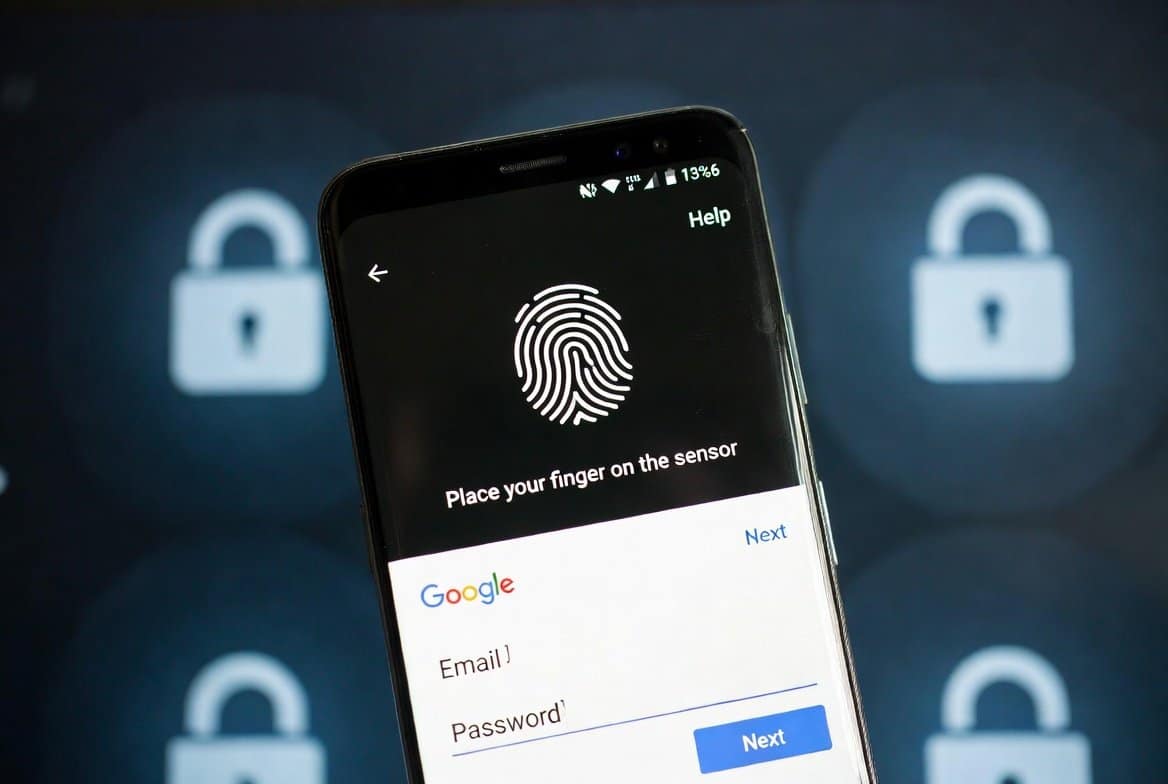
Passwords have been the backbone of online security for decades, but they’re increasingly vulnerable to phishing, data breaches, and simple human error like reusing weak credentials. Enter Google Passkey — Google’s implementation of passkeys, a passwordless authentication method that’s faster, simpler, and dramatically more secure.
If you’re tired of typing complex passwords, dealing with forgotten credentials, or worrying about phishing emails, passkeys represent the future of sign-ins. In this in-depth guide, we’ll break down exactly what a Google Passkey is, why it’s superior to traditional passwords, how to set one up step by step across devices, real-world benefits and limitations, and answers to the most common questions.
By the end, you’ll know whether passkeys are right for you and how to make the switch seamlessly.
What Exactly Is a Google Passkey?
A Google Passkey is a digital credential based on the FIDO Alliance standards that replaces your traditional password for signing into your Google Account. Instead of entering a username and password, you authenticate using your device’s built-in security features:
- Fingerprint scan
- Face recognition (like Face ID)
- PIN or pattern lock
Passkeys use public-key cryptography. When you create one:
- A private key stays securely on your device (never shared or transmitted).
- A public key is registered with Google.
During sign-in, your device proves possession of the private key by responding to a challenge from Google — all without sending any secret across the internet.
This makes passkeys phishing-resistant — fake websites can’t trick you into revealing them because there’s nothing to type or enter on suspicious pages.
Google rolled out passkeys widely starting in 2022-2023, and by 2026, they’re the default “passwordless” option for many personal accounts, with the “Skip password when possible” toggle enabled by default.
Why Google Passkeys Are More Secure Than Passwords
Traditional passwords are vulnerable in multiple ways:
- Easily phished via fake login pages
- Stolen in massive data breaches
- Guessed through brute-force or credential stuffing
- Reused across sites, amplifying damage from one compromise
Passkeys eliminate most of these risks:
- Phishing-proof: The passkey is bound to the exact domain (e.g., accounts.google.com). A fake site like “g00gle.com” can’t use it.
- No shared secrets: Nothing is transmitted that an attacker can intercept or reuse.
- Device-bound security: Authentication requires unlocking your physical device.
- Resistant to breaches: Even if Google’s servers are compromised, attackers get only public keys — useless without your device.
Google reports passkeys are up to 40% faster to use and provide stronger protection than passwords or even many 2FA methods.
Benefits of Using Google Passkeys
Here are the key advantages that make passkeys a game-changer:
- Speed and convenience — Sign in with one tap or glance instead of typing.
- Cross-device syncing — When synced via Google Password Manager (on Android/Chrome) or platform-specific systems (iCloud Keychain on iOS), passkeys become available on all your devices.
- No password fatigue — Forget memorizing or resetting complex strings.
- Better for multi-device users — Seamlessly switch between phone, laptop, and tablet.
- Future-proof — Major platforms (Google, Apple, Microsoft) support passkeys, accelerating adoption.
Potential Drawbacks and Limitations of Passkeys
No technology is perfect. Consider these points before fully committing:
- Device dependency — Lose access to all devices with the passkey? Recovery often falls back to traditional methods (password + recovery options).
- Initial setup required — You need to create passkeys on each major device.
- Limited sharing — Unlike passwords, you can’t easily share access (good for security, inconvenient for families/shared accounts).
- Recovery challenges — If you lose your device and don’t have backups or recovery options, regaining access can be more complicated than a simple password reset.
- Not universal yet — While Google fully supports them, not every website or app does (though adoption grows rapidly).
For most users, the security gains far outweigh these inconveniences, especially with proper backups and recovery setup.
How to Set Up a Google Passkey Step by Step
Setting up is straightforward and takes under 2 minutes. Here’s the official process (verified from Google’s support pages).
On Android Phone (Recommended for Most Users)
- Open Settings > Google > Manage your Google Account.
- Go to Security > Passkeys and security keys (or search for “passkeys”).
- Tap Create a passkey.
- Unlock your phone with fingerprint, face, PIN, or pattern.
- Confirm creation — your passkey is now saved and synced via Google Password Manager.
On Computer (Chrome Browser)
- Visit myaccount.google.com/signinoptions/passkeys.
- Sign in with your current method if prompted.
- Click Create a passkey.
- Choose your device (or use phone for cross-device).
- Authenticate with your device’s unlock method.
- Done — the passkey is created and ready.
On iPhone/iPad (iOS)
- Go to g.co/passkeys in Safari.
- Sign in and follow prompts.
- Authenticate with Face ID or Touch ID.
- The passkey saves to iCloud Keychain for syncing across Apple devices.
Pro tip: Create passkeys on multiple devices for redundancy. Repeat the process on each phone, tablet, or computer you use regularly.
Once set up, the next time you sign in to Google services (Gmail, YouTube, Drive), you’ll see a prompt to use your passkey instead of a password.
How to Use Your Google Passkey for Sign-In
- Go to any Google sign-in page.
- Enter your email (or select your account).
- Instead of typing a password, choose “Use passkey” or the biometric prompt.
- Unlock your device — you’re in!
If you’re on a different device, you can scan a QR code with your phone to authenticate cross-device.
Common Questions and Objections Addressed
Many readers hesitate — here are direct answers:
- What if I lose my phone? Use another device with a passkey, or fall back to password + recovery email/phone/2FA.
- Can passkeys be hacked remotely? Extremely unlikely — private keys never leave your device, and authentication requires physical unlock.
- Do I still need 2FA? Passkeys often replace the second factor since they prove device possession.
- Are passkeys available for work/school accounts? Availability varies; personal accounts have full support, but some enterprise setups lag.
Conclusion: Is It Time to Switch to Google Passkeys?
Google Passkeys mark a genuine leap forward — combining bulletproof security with effortless usability. They’re not just a gimmick; they’re the beginning of the end for passwords as we know them.
If you use Google services daily, setting up a passkey now future-proofs your account and reduces risk significantly.
Check out my writings:
TAMZIDUL HAQUE 🖋️Writer —
https://medium.com/@tamzidulhaque
Building a blog or website to share your knowledge and earn from AdSense? Start with reliable, fast hosting. I recommend Hostinger — affordable, high-performance plans perfect for bloggers: https://hostinger.com?REFERRALCODE=TAMZID99.
Looking for digital products to boost your side hustle? Explore quality resources on Gumroad: https://gumroad.com/discover?a=593719699.
Read More-Your Articles Are Dying Because You Forgot This One SEO Tactic
FAQ
What is a Google Passkey?
A Google Passkey is a passwordless sign-in method that uses your device’s biometric (fingerprint/face) or screen lock to authenticate, based on secure public-key cryptography.
How do I set up a Google Passkey?
Visit myaccount.google.com/signinoptions/passkeys, sign in, click “Create a passkey,” and authenticate with your device unlock method.
Are Google Passkeys more secure than passwords?
Yes — they’re phishing-resistant, can’t be guessed or stolen in breaches, and require physical device access.
Can I use Google Passkeys on multiple devices?
Yes, create one on each device or sync via Google Password Manager (Android/Chrome) or iCloud Keychain (Apple).
What happens if I lose my device with a passkey?
Use another device with a passkey, or recover via your password and backup methods (recovery email/phone).
Do passkeys work with 2-Step Verification?
Passkeys often replace the second factor, as they verify device possession securely.
Are Google Passkeys available for everyone?
Yes for personal Google Accounts; some Workspace or enterprise accounts may have limited support.