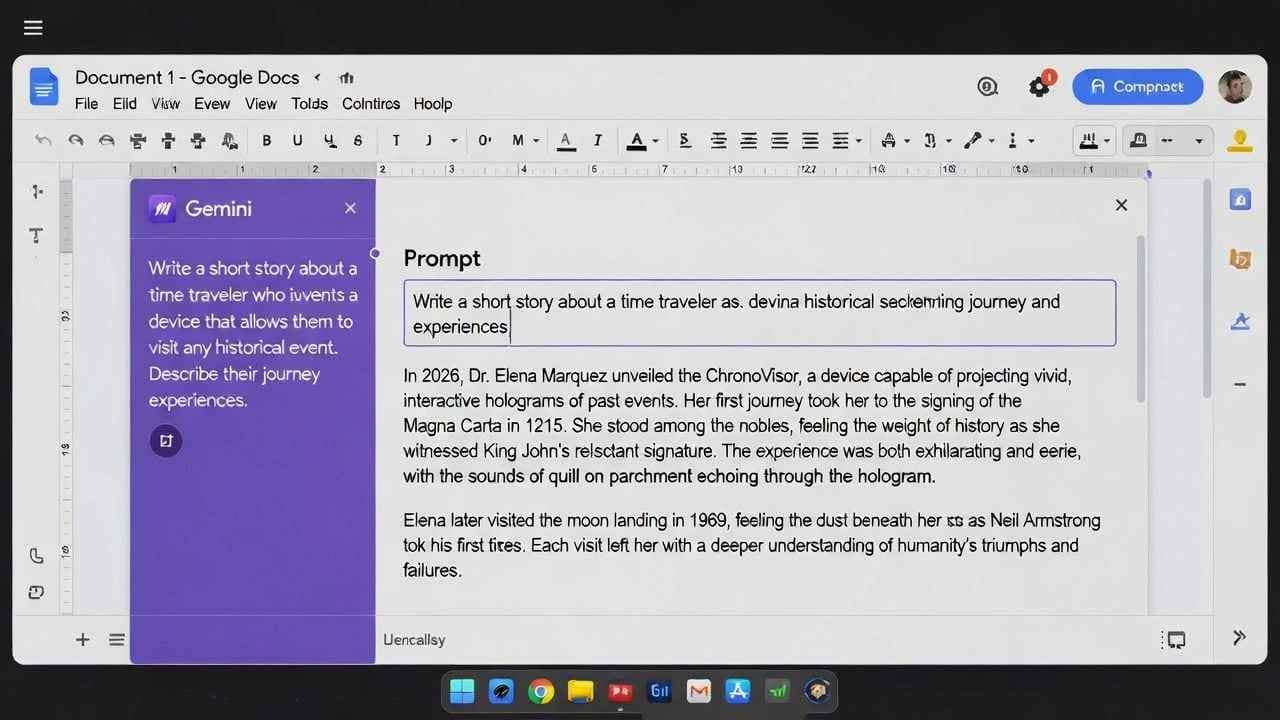
In 2026, Google Docs isn’t just a word processor anymore—it’s an intelligent writing partner powered by Gemini, Google’s most advanced AI model family. Whether you’re drafting blog posts, business proposals, student essays, marketing copy, or internal reports, Gemini can help you generate ideas, write full drafts, refine tone, summarize long documents, create images, and even build entire styled documents from scratch.
This comprehensive guide shows you exactly how to access and use every major Gemini feature in Google Docs today, with step-by-step instructions, real-world examples, pro tips, and troubleshooting for common issues.
The best part? how to use gemini in google docs popular because these features are built directly into Google Docs—no extensions, no copy-pasting between tabs, no extra logins.
By the end, you’ll save hours every week while producing higher-quality content.
Who Can Use Gemini in Google Docs? how to use gemini in google docs?
Gemini integration availability depends on your account type in 2026:
- Free personal Google accounts (@gmail.com) → Limited or no access to full Gemini side panel and advanced features. Basic “Help me write” may appear sporadically, but most powerful tools require paid access.
- Google Workspace Business / Enterprise plans (Business Standard, Business Plus, Enterprise Standard/Plus) → Full Gemini side panel, “Help me write,” “Help me create,” image generation, summarization, and more included.
- Gemini add-ons (Gemini Business, Gemini Education Premium, etc.) → Unlocks advanced capabilities even on lower-tier Workspace plans.
- Google AI Pro / Ultra subscriptions (consumer-facing) → Sometimes enable select features in personal Docs, but Workspace plans remain the most reliable path.
Quick eligibility check for how to use gemini in google docs
Open any Google Doc → look in the top-right corner near your profile picture. If you see a sparkling star / Ask Gemini icon or “Help me write” button on a blank document, you’re good to go.
If not, consider upgrading your Workspace plan or checking Google Workspace Labs eligibility for early features.
Method 1: Using “Help me write” – Generate and Refine Content Anywhere
“Help me write” remains one of the most popular entry points for Gemini in Docs.
Step-by-step:
- Open Google Docs (docs.google.com) and either:
- Create a new blank document, or
- Open an existing document and place your cursor where you want new text.
- Look for the blue pencil + sparkle icon on the left side (in blank docs) or floating near your cursor in existing text.
- Click it → the “Help me write” panel opens.
- Type a prompt. Examples:
- “Write a 400-word blog post introduction about sustainable fashion trends in 2026”
- “Draft a professional email declining a vendor proposal politely but firmly”
- “Create bullet-point action items from the meeting notes below”
- Hit Create → Gemini generates draft text.
- Use the buttons that appear:
- Insert → adds the text to your document
- Regenerate → creates a new version
- Refine / Formal / Concise / Elaborate / etc. → adjusts tone and length instantly
Pro tip: Highlight existing text first → right-click → “Help me write” → Gemini will rewrite, expand, shorten, or rephrase only the selected portion while preserving context.
Method 2: The Gemini Side Panel – Your Always-On AI Assistant
The side panel (Ask Gemini) gives you contextual, document-aware help without interrupting your flow.
How to open it:
- In any Google Doc, look at the top-right corner.
- Click Ask Gemini.
- The right sidebar opens with suggested prompts and a chat box.
Powerful ways to use the side panel:
- Ask questions about your document “What are the three main arguments in this proposal?” “Summarize this 15-page report in 200 words”
- Generate content in context “Write a conclusion that ties back to the introduction” “Suggest three counter-arguments to strengthen my position”
- Brainstorm ideas “Give me 8 blog title ideas for an article about remote team productivity tools in 2026” “Create a content outline for a whitepaper on AI ethics”
- Image generation (where supported) “Generate a professional cover image of a modern workspace with diverse team collaborating” Gemini creates images you can insert directly.
- Pull from Drive / Gmail Advanced prompts can reference other files: “@quarterly-report.pdf Summarize key financial takeaways”
Privacy note: Gemini uses your document content to answer, but Google states Workspace data isn’t used to train models (check latest Workspace privacy policy for updates).
Method 3: “Help me create” – Build Entire Styled Documents from One Prompt
Introduced in late 2024 and significantly improved by 2026, “Help me create” is the fastest way to go from blank page to polished, formatted document.
How to use it:
In Google Docs, go to File > New > Help me create
- (or click the prominent “Help me create” option on the Docs homepage).
- In the prompt box, describe your document in detail. You can:
- Reference existing Drive files with @filename
- Specify structure: sections, tables, bullet lists
- Request visuals: cover image, inline diagrams
- Set tone and length
Example prompt:
- “Create a complete 8-page business proposal for a digital marketing agency pitching to a SaaS startup. Include cover page with generated image of data analytics dashboard, executive summary, services offered in table format, pricing tiers, case studies pulled from @past-clients.pdf, timeline, and call-to-action. Use professional, confident tone.”
- Gemini builds the full document—cover image, headings, tables, formatted text, and more.
- Review, edit, regenerate sections, or ask the side panel to refine anything.
This feature alone can cut document creation time from hours to minutes.
Advanced Tips & Best Practices (2026 Edition)
- Prompt engineering cheat sheet
- Be specific: “Write a 600-word persuasive LinkedIn post” > “Write something about LinkedIn”
- Use role-playing: “Act as a senior marketing strategist…”
- Chain prompts: Generate → refine tone → shorten → add SEO keywords
- Reference context: “Using the style and voice from the first two paragraphs above…”
- Tone & formality controls After any generation, click options like: Formal, Casual, Concise, Elaborate, Persuasive, Friendly, Professional.
- Iterate quickly Don’t accept the first output. Use “Regenerate” or tell the side panel: “Make it 30% shorter and more engaging.”
- Mobile access (Android) On Android Docs app (iOS support still limited in early 2026): Open document → tap the sparkle icon or menu → access summarization, Q&A, and basic generation.
- Common limitations & workarounds
- Very long documents (>50 pages) may slow responses → work section by section
- Image generation sometimes fails on complex requests → simplify prompt
- No offline mode → ensure internet connection
Real-World Use Cases That Save Hours/ how to use gemini in google docs
- Bloggers & content creators → Generate outlines, intros, conclusions, SEO keyword suggestions
- Students → Summarize research papers, create study outlines, draft essay sections
- Marketers → Write ad copy, social posts, email campaigns, landing page text
- Business professionals → Draft proposals, reports, meeting notes, performance reviews
- Freelancers → Quickly create client pitches, contracts, invoices descriptions
Conclusion & Next Steps
Gemini has transformed Google Docs from a simple editor into a full AI co-writer. Start small—try “Help me write” on your next blank document—then graduate to the side panel and “Help me create” for bigger projects.
The more specific your prompts and the more you iterate, the better the results become.
Ready to level up your writing?
Check out more of my writing:
TAMZIDUL HAQUE 🖋️Writer — https://medium.com/@tamzidulhaque My writings on Zero CLICK search
https://tamzidulhaque.com/ •Happy writing—and let Gemini do the heavy lifting!
Read more- Is Gemini AI better than ChatGPT : Gemini vs Chatgpt 2026 Ai War People asking
Google Gemini Guided Learning in 2026: Your Free AI Tutor That Actually Teaches (Not Just Answers!)
FAQ
How do I get Gemini in Google Docs if I don’t see the icon?
Ensure you’re signed into a Google Workspace Business/Enterprise plan or have a Gemini add-on. Free Gmail accounts have limited access. Check Google Workspace admin settings or join Workspace Labs if eligible.
Is Gemini in Google Docs free?
Basic “Help me write” sometimes appears on personal accounts, but full side panel, image generation, and “Help me create” require a paid Google Workspace plan (Business Standard+) or Gemini add-on.
Can Gemini access my entire Drive?
It can reference files you explicitly mention with @filename in prompts or when contextually relevant in the side panel, but only within your permission scope.
Does Google use my Docs content to train Gemini?
No—for Workspace users, Google states your data isn’t used to train models. Always review the latest privacy terms.
How do I generate images with Gemini in Docs? how to use gemini in google docs?
In the side panel, prompt “Generate an image of…” or include image requests in “Help me create” prompts. Availability varies by plan and region.
Why is Gemini slow or not responding in my document?
Large documents, complex prompts, or temporary service load can cause delays. Try shorter sections or simpler prompts first.
Can I use Gemini in Google Docs offline?
No, Gemini requires an internet connection.
What languages does Gemini support in Google Docs?
Over 20+ languages for mobile and web, with English having the strongest performance. Check Google’s support page for your language.