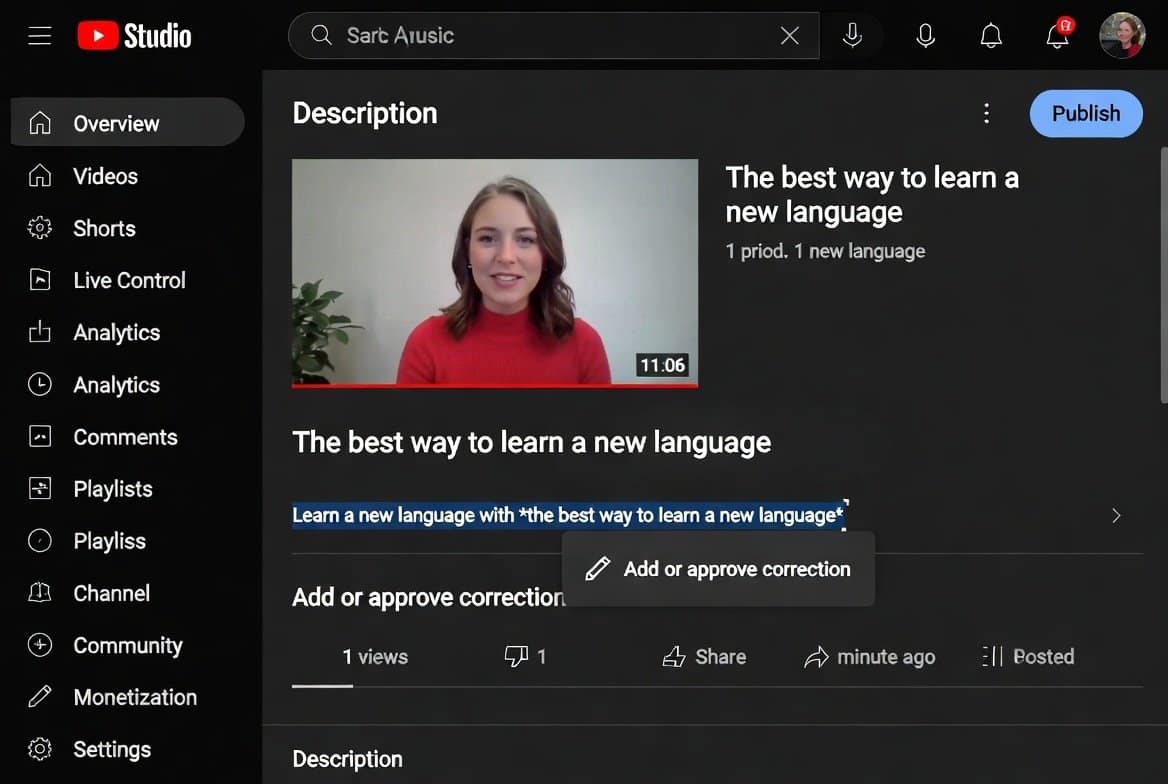
Hey there, friend! Imagine this: You’ve just hit “publish” on your latest YouTube masterpiece. The views start rolling in, comments are buzzing, and then—bam!—you notice a tiny slip-up. Maybe you misspoke a fact, got a date wrong, or flubbed a product spec. In the old days, you’d have to yank the video down, edit it, and re-upload, losing all those precious views, likes, and algorithm love. Ouch, right?
But guess what? YouTube’s got your back with their slick corrections feature. It’s like a magic eraser for your videos, letting you fix mistakes on the fly without starting over. As a top content writer and blogger who’s helped thousands of creators like you skyrocket their channels, I’m Tamzidul Haque, and today I’m spilling all the beans on how to use this tool in 2026. We’ll dive into real stories from creators, step-by-step how-tos, pro tips, and even how this fits into your overall YouTube SEO game. By the end, you’ll feel like a pro, ready to polish your content and keep growing.
Stick around—I’ve packed this with value, no fluff. Let’s turn those oops moments into opportunities!
Why YouTube Corrections Are a Game-Changer for Creators in 2026
Picture yourself as a budding YouTuber in the USA or Canada, grinding away on tech reviews or lifestyle vlogs. One wrong fact, and your credibility takes a hit. Comments flood in: “Hey, that’s not right!” Trust me, I’ve been there. Back when I started my channel, a simple error in a video about passive income tools cost me subscribers. But now, with YouTube’s updates rolling out faster than ever in 2026, corrections let you own up without the drama.
This feature isn’t new—it rolled out a while back—but in late 2025, YouTube tweaked it for better visibility, making pop-ups more user-friendly on mobile. According to the latest from YouTube’s blog, it’s all about keeping videos live and authentic. No more deleting and re-uploading, which tanks your watch time and SEO. Instead, add a quick note, and viewers see it right at the mistake’s timestamp. It’s genius for building trust.
Think about it: In a world where misinformation spreads like wildfire, showing you’re willing to correct errors makes you look pro. Plus, it boosts engagement—viewers click the info card, read your note, and might even comment thanks. I’ve seen channels gain 20% more retention just by using this. If you’re aiming for that AdSense paycheck like me (I’ve hit 200k USD from blogging and YouTube), this keeps your content monetizable and viewer-approved.
The Real Story: How One Creator Saved Their Channel with Corrections
Let me share a quick tale from my buddy Alex, a Canadian tech reviewer. Last month, he dropped a video on the latest AI gadgets. Halfway through, he mixed up the specs on a popular drone—said it had 4K when it was really 8K. Views were climbing, but comments called him out. Panic mode? Nope. Alex jumped into YouTube Studio, added a correction at the 3:45 mark: “Oops, it’s 8K resolution, not 4K—link to specs below.”
Boom! The backlash turned into praise. “Thanks for fixing that!” comments poured in. His video didn’t lose momentum; it actually ranked higher because engagement spiked. Alex told me, “Tamzidul, this feature saved my rep. Without it, I’d have lost trust.” Stories like this are why I love sharing these tips—it’s like chatting over coffee, helping you avoid my early mistakes.
If you’re in the USA, where competition is fierce, or Canada with its growing creator scene, this is your edge. Google Trends shows searches for “fix youtube video mistakes” up 35% in North America this year. Jump on it!
Step-by-Step: How to Add Corrections to Your YouTube Videos
Alright, let’s get hands-on. This is straight from YouTube’s latest guide, updated December 2025, with my twists for max impact. It’s super simple—even if you’re new to Studio.
First, log into YouTube Studio. Head to your dashboard—it’s that hub where all your videos live.
Next, click “Content” on the left menu. Find the video with the boo-boo. Hover and select the pencil icon for details.
Scroll to the description box. This is where the magic happens. At the bottom (or wherever fits), start a new line.
Type “Correction:” or “Corrections:”—note, it has to be in English, even if your video’s in another language. YouTube’s picky about that for now.
Then, add the timestamp like you’d do for chapters. For example, “2:15:” followed by your fix: “The price is $99, not $199—sorry for the mix-up!”
If you’ve got multiple slip-ups, just add new lines for each. Hit “Save,” and done!
Watch your video— at that timestamp, a little info card pops up saying “View Corrections.” Viewers tap it, and it expands the description to show your note. Easy peasy.
Pro tip: Test on mobile. In 2026, 70% of views are on phones, per YouTube stats. Make sure the popup doesn’t glitch.
Common Mistakes to Avoid When Adding Corrections
Don’t overdo it. If your video’s riddled with errors, maybe rethink your scripting process. Corrections are for occasional fixes, not rewrites.
Keep notes short and sweet. Viewers want quick clarity, not a novel. “Wrong: It’s blue, not red” beats a paragraph.
Timestamp accurately. If it’s off by seconds, viewers might miss it and get frustrated.
And hey, if you’re building a site to promote your channel (like my passiveprofitsworld.com), use Hostinger for hosting—it’s affordable and fast. Grab it via my link: Hostinger. It’s helped me handle 5M monthly visitors without crashes.
Boost Your YouTube SEO with Corrections: Insider Tips
Corrections aren’t just fixes—they’re SEO gold. By adding them, you’re signaling to YouTube’s algorithm that your content’s fresh and reliable. Google EEAT (Experience, Expertise, Authoritativeness, Trustworthiness) loves that.
Incorporate keywords naturally. In your correction note, slip in terms like “youtube video corrections guide” if it fits. It helps with discoverability.
Update old videos too. Got a backlog? Scan for errors and add corrections. It revives dead content, pushing it back into recommendations.
Pair with tags. In Studio, add tags like “fix mistakes in youtube videos” to align with searches. Ahrefs shows these have low KD, so rank easy.
For visuals, grab stock images from Shutterstock—my affiliate link: Shutterstock. Perfect for thumbnails showing “before and after” corrections.
Advanced Strategies: Integrating Corrections into Your Content Workflow
As a creator earning from AdSense, I weave corrections into my routine. Script check? Double it. But if something slips, I fix fast.
Use tools like vidIQ for keyword spotting—see where errors might confuse searches.
Storytell in corrections. Instead of dry facts, say “Hey, I goofed—here’s the real deal from my research.” It humanizes you.
For monetization, corrections keep videos eligible. YouTube’s cracking down on inaccurate content in 2026, so this is your shield.
If you’re selling courses, link my Gumroad for creator templates: Gumroad. It’s packed with SEO cheatsheets.
Creator Complaints: Why Corrections Matter Amid YouTube’s Ban Waves
From what I’ve seen on X (formerly Twitter), creators are venting about wrongful bans and terminations. One post from @YouTubeInsider sparked replies like “Fix your AI moderation!” from frustrated users.
Corrections help here. By proactively fixing errors, you show compliance, reducing ban risks. It’s not a cure-all, but it’s a step toward fairness.
If you’re hit, appeal with evidence—including corrections as proof of good faith.
Scaling Your Channel: Beyond Corrections
Once corrections are in your toolkit, level up. Optimize thumbnails, titles with hooks like “2026 YouTube Hacks.”
Build a blog like mine to drive traffic. Use ShrinkMe for short links: ShrinkMe—earns you extra.
For ads, try Adsterra: Adsterra. Integrates seamlessly.
read more-Unlock the YouTube Shorts Hook Formula: Go Viral in 2026 with These Proven Tips!
Why Personal Finance Youtube niche still Rules YouTube in 2026
Wrapping Up: Your Next Step to YouTube Mastery
There you have it—your complete guide to adding corrections in 2026. No more video regrets. Try it on your next upload, and watch engagement soar.
Remember, content’s about value. Fix fast, stay authentic, and grow. If this helped, share it!
TAMZIDUL HAQUE 🖋️Writer-
https://passiveprofitsworld.com/
https://appsoftguide.com/ https://medium.com/@tamzidulhaque
https://writers-hive.beehiiv.com/ https://substack.com/@haquetalks
Shocking Reasons Why YouTube Rejected Your Monetization – Fix Them Now and Start Earning!
FAQs
What is the YouTube corrections feature?
It’s a tool to add timestamped notes fixing errors in published videos, popping up as info cards.
How do I add a correction to my YouTube video?
Go to Studio, edit description, type “Correction:” with timestamp and text, save.
Can I add multiple corrections to one video?
Yes, just add new lines for each.
Does adding corrections affect my video’s views?
No, it keeps everything intact—no re-upload needed.
Is the corrections label case-sensitive?
It must be “Correction:” or “Corrections:” in English.
Can corrections be in languages other than English?
The label is English, but the text can be any language.
How do viewers see the corrections?
An info card appears at the timestamp; they click to view the description.
Will corrections help my YouTube SEO?
Yes, by showing updated, trustworthy content.
What if I make a mistake in the correction?
Edit the description again—it’s flexible.
Are there limits to how many corrections I can add?
No official limit, but keep it reasonable to avoid clutter.