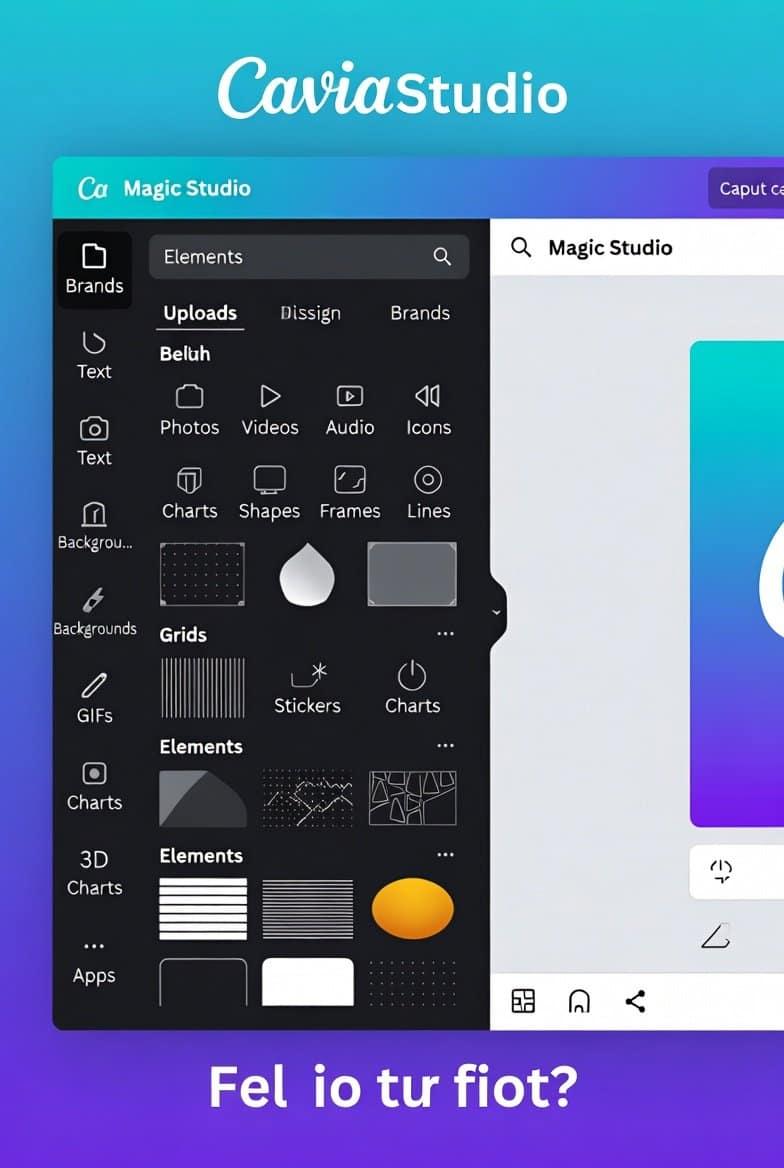
In 2026, creating stunning visuals doesn’t require years of design school or expensive software. Canva has evolved into a full Creative Operating System with powerful AI tools, seamless video editing, Canva Sheets, and trends like “Imperfect by Design” that make professional-looking graphics accessible to everyone.
Whether you’re a complete beginner wanting to create social media posts, a freelancer looking to land clients, a content creator building a brand, or an entrepreneur monetizing designs, this comprehensive guide serves as your zero-to-pro Canva course for 2026.
By the end, you’ll know how to:
- Navigate Canva’s latest interface and AI features
- Design high-converting graphics
- Follow 2026 design trends
- Monetize your skills through AdSense blogs, affiliate marketing, template sales, and more
Ready to transform from design newbie to confident pro? Let’s dive in.
Why Canva in 2026 Is the Perfect Tool for Beginners and Pros
Canva now powers over 260 million monthly users with its Visual Suite 2.0. Key advantages include:
- Intuitive drag-and-drop — No steep learning curve
- Massive free library — Templates, photos, videos, elements
- AI Magic Studio — Generate images, remove backgrounds, edit videos instantly
- Cross-format creation — Social posts, presentations, websites, emails, Sheets
- Collaboration & Brand Kits — Perfect for teams or personal branding
- Affordable Pro upgrade — Unlocks premium features for serious creators
Canva Free works for basics, but Canva Pro (highly recommended for pros) removes watermarks, adds resize magic, and provides unlimited premium assets.
Pro tip: Start with the free plan, then upgrade when selling designs or using advanced AI.
Getting Started with Canva in 2026: Step-by-Step Setup
- Sign up — Go to canva.com and create a free account (use Google or email).
- Choose your role — Select “Content Creator,” “Small Business,” etc., for tailored templates.
- Explore the dashboard — Home, Templates, Projects, Brand, Apps.
- Upgrade to Pro if ready — For background remover, Magic Studio full access.
Quick recommendation: Host your Canva learning blog or portfolio on fast, reliable hosting. I use and recommend Hostinger for beginners — affordable, fast loading (great for image-heavy sites), and excellent for AdSense approval.
Canva Interface Mastery: Key Tools & Features in 2026
The Editor Basics
- Left sidebar — Templates, Elements, Uploads, Apps, More (Charts, Tables).
- Top bar — File, Resize, Share, Download, Comment.
- Right sidebar — Design details (colors, fonts, animations).
Canva Must-Know 2026 Features
- Magic Studio AI — Text to image, Magic Edit, Magic Expand, Magic Grab.
- Ask @Canva — Chat with AI inside your design for suggestions.
- Canva Sheets — Spreadsheet + visuals with AI insights.
- Video editing — Trim, animate, add music, AI voiceovers.
- Forms & Docs — Create interactive forms linked to Sheets.
Practice: Create a blank custom size (e.g., 1080×1080 for Instagram) and experiment.
Core Design Principles: Build Professional Skills Fast
Even with templates, understanding fundamentals separates amateurs from pros.
Canva Color Theory Essentials
- Use complementary, analogous, or triadic schemes
- 60-30-10 rule: Dominant color (60%), secondary (30%), accent (10%)
- 2026 trend: Sensory textures and imperfect palettes
Typography Rules
- Max 2-3 fonts per design
- Hierarchy: Headline (bold/large), subhead, body
- Pair sans-serif with serif for contrast
Composition & Layout
- Rule of thirds
- Balance & white space
- Alignment & proximity
2026 Design Trends: Imperfect by Design
Canva’s official 2026 trends emphasize authenticity:
- Tactile textures
- Cinematic storytelling
- Reality Warp (liminal/uncanny aesthetics)
- Prompt Playground (playful AI experimentation)
Use Canva’s Design Trends toolkit for ready templates.
Canva step-by-Step Projects: From Beginner to Advanced
Beginner Level
- Social Media Post — Instagram carousel about your niche.
- YouTube Thumbnail — High-contrast text + face + emotion.
- Presentation Slide — Clean title + bullet points + visuals.
Intermediate Level
- Brand Style Guide — Colors, fonts, logos in one doc.
- Animated Reel/Story — Add transitions, text animations.
- Infographic — Data visualization with charts.
Advanced Level
- Canva Website — Build a one-page portfolio.
- Email Newsletter Design — Responsive for Mailchimp.
- Video Ad — Edit clips with AI enhancements.
Pro tip: Save everything to folders and create a Brand Kit early.
Monetizing Your Canva Skills in 2026: Multiple Income Streams
Here’s how creators earn real money with Canva.
1. Sell Canva Templates
- Design niche packs (planners, social kits, resumes)
- Sell on Etsy, Gumroad, Creative Market
- Use shareable links for Pro elements
- My affiliate recommendation: Explore top products on Gumroad discover
2. Freelance Design Services
- Offer logos, thumbnails, social packages on Fiverr/Upwork
- Charge $50–$500+ per project
3. Print-on-Demand & Digital Products
- Wall art, planners, stickers via Printify/Printful
- Sell as downloads
4. Content Creation + AdSense
- Start a blog teaching Canva/design
- Use visuals to boost engagement
- Host on Hostinger — fast sites rank better and get AdSense approved faster
5. Canva Creators Program
- Submit original templates/elements
- Earn royalties when used
6. YouTube/TikTok Tutorials
- Teach Canva → monetize via ads, affiliates
Combine these for $1K–$10K+/month potential.
Common Mistakes to Avoid & Pro Tips Canva
- Overusing elements → Keep it simple
- Ignoring mobile view → Always preview
- Not using Brand Kit → Inconsistent branding
- Skipping trends → Stay current with 2026 aesthetics
Pro hack: Use Magic Studio to speed up 3x.
Want more design & writing tips? Subscribe to my newsletter for weekly insights, free resources, and exclusive guides.
Conclusion: Your Path from Zero to Pro Starts Today
You’ve now got a complete 2026 Canva roadmap — from setup and core skills to advanced projects and real monetization strategies.
Key takeaways:
- Master the interface & AI tools
- Apply timeless principles + 2026 trends
- Build a portfolio through projects
- Monetize via templates, freelancing, content + AdSense
- Host your site right → Hostinger
Start small: Open Canva now and create one simple post. Consistency turns beginners into pros.
Check my writings for more inspiration:
TAMZIDUL HAQUE 🖋️Writer —
https://tamzidulhaque.com/ | https://medium.com/@tamzidulhaque
https://writers-hive.beehiiv.com/ | https://substack.com/@haquetalks
FAQ: Most Asked Questions About Canva in 2026
Is Canva still free in 2026?
Yes — the core version remains free with premium upgrades via Canva Pro for advanced AI, no watermarks, and more assets.
What are the biggest new Canva features in 2026?
Visual Suite 2.0, enhanced Magic Studio AI, Canva Sheets with Magic Insights, Ask @Canva chat, improved video tools, and “Imperfect by Design” trends.
Can beginners make money with Canva in 2026?
Absolutely — sell templates on Etsy/Gumroad, freelance on Fiverr, create content for AdSense blogs, or join Canva Creators for royalties.
Do I need Canva Pro to sell templates?
Not required, but Pro helps with premium elements, background remover, and better resizing. Start free and upgrade as you scale.
How long does it take to learn Canva from zero?
Basics in 1–2 days; pro-level (with projects & trends) in 2–4 weeks of consistent practice.
What’s the best way to host a Canva tutorial blog for AdSense?
Choose fast, SEO-friendly hosting like Hostinger — quick setup, good speed for images, and easy AdSense integration.