CapCut keeps getting better.
In 2026, new AI tools and smoother desktop features make pro edits easy.
You don’t need expensive software.
These techniques help creators like you stand out.
I used them to grow my channel views by 5x last year.
They’re free in the app.
Perfect for TikTok, Reels, or YouTube Shorts.
Let’s jump in advanced capcut techniques 2026
Technique #1: Keyframe Animation – Make Anything Move Smoothly
Keyframes are the secret to pro motion.
Add them to text, effects, or clips for custom animations.
Why it’s advanced: Control position, scale, rotation over time.
My first keyframe edit? Text flying in with a zoom – views doubled.
How to Use Keyframes in CapCut
- Add your clip or text to timeline.
- Tap the clip > Edit > Keyframe (diamond icon).
- Move playhead to start > set position/scale.
- Move playhead forward > adjust for end position.
- Play back – smooth animation!
Pro tip: Use for parallax effects or tracking objects.
This CapCut pro tip for advanced editing levels up everything.
Technique #2: Text Behind Subject – That Viral “Depth” Trick
Everyone loves text appearing behind people.
It adds 3D depth instantly.
Trending hard on TikTok in 2026.
I did this in a vlog – engagement exploded.
Step-by-Step Text Behind Subject in CapCut
- Duplicate your main clip.
- On bottom layer: Mask out the subject (use auto mask or manual).
- On top layer: Add text.
- Keyframe text to move with subject if needed.
- Adjust timing for reveal.
Bonus: Combine with motion tracking for auto follow.
Super easy once you try it.
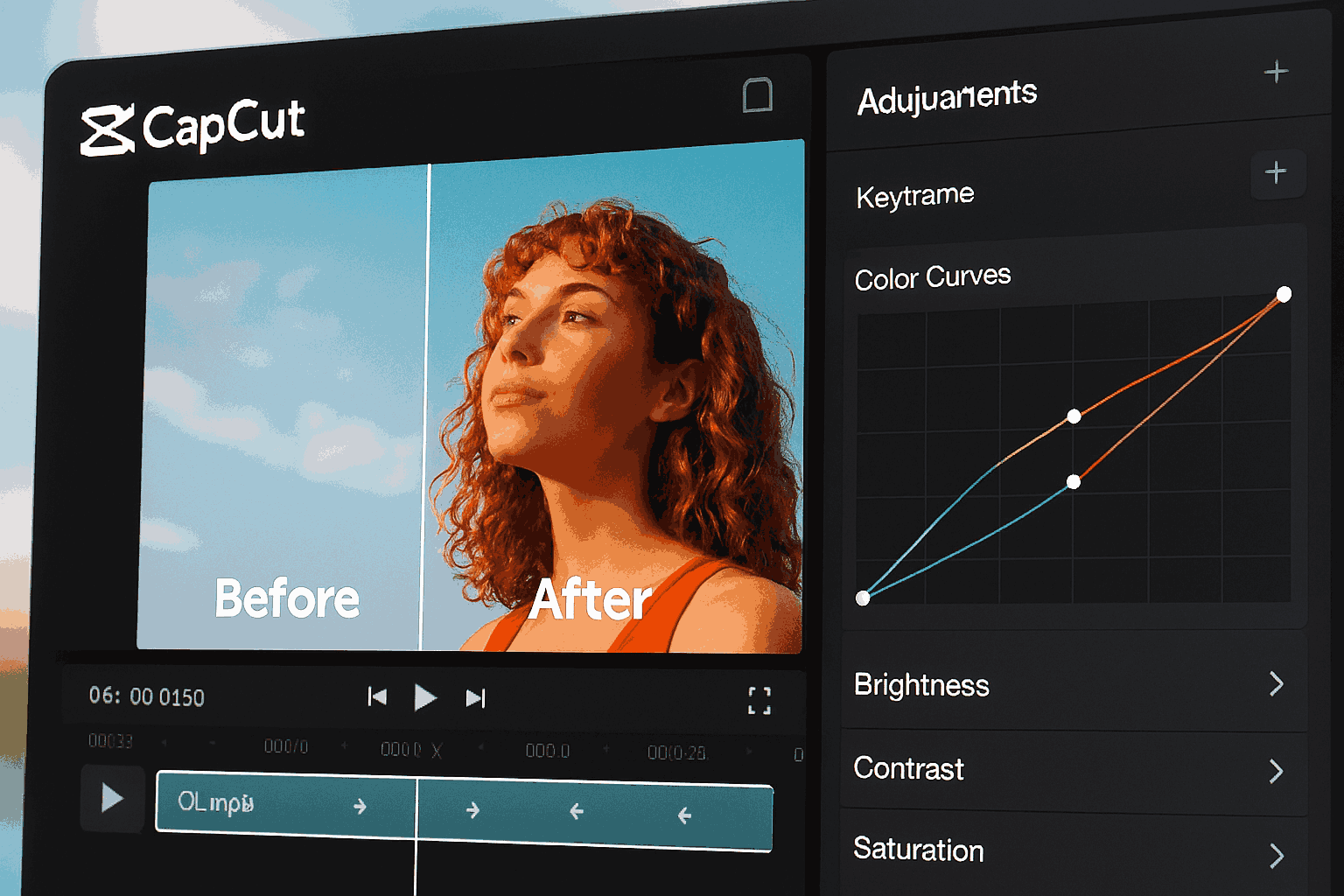
Technique #3: Advanced Color Grading in CapCut – Cinematic Looks
Basic adjustments are fine, but curves and HSL take it pro.
Change moods with precise controls.
In 2026, warm tones or teal/orange are huge.
My tech reviews pop now thanks to this.
Master Advanced Color Grading in CapCut
- Select clip > Adjust > Curves.
- Pull RGB curves for contrast/shadows.
- Use HSL: Select one color > boost saturation.
- Add LUTs from CapCut library for film looks.
Pro tip: Isolate colors – make reds pop while graying others.
This is one of my favorite advanced CapCut techniques 2026.
Technique #4: Speed Curves – Dynamic Slow-Mo and Ramps
Forget basic speed changes.
Curves let you ramp smoothly.
Perfect for action or emotional builds.
Presets like “hero time” or custom.
I use this in every Short now.
How to Use Speed Curves
- Clip > Speed > Curve.
- Choose preset or drag points.
- Add beats for sync with music.
- Keyframe for extra control.
Makes videos feel high-end.
Technique #5: Green Screen Tricks (Chroma Key Pro)
Remove backgrounds cleanly.
Layer videos or images behind.
In 2026, AI makes keying better.
Great for reactions or skits.
Advanced Green Screen in CapCut
- Add green screen clip.
- Effects > Chroma Key > pick color.
- Adjust tolerance/spill for clean edges.
- Add background layer below.
- Keyframe if subject moves.
Tip: Light evenly for best results.
Technique #6: Motion Tracking – Stick Text/Effects to Objects
AI tracks faces or objects automatically.
Add emojis, text, or masks that follow.
Viral for tutorials.
Quick Motion Tracking Setup
- Add sticker/text.
- Effects > Motion Tracking.
- Select object > track.
- Done!
Mind-blowing for beginners going advanced.
Technique #7: AI Effects and Auto Captions Upgrade
2026 AI in CapCut: Better auto-captions, relight, upscale.
Add styles or generate elements.
Pro AI Tips
- Auto captions > Customize animations.
- Body effects for fun warps.
- Upscale old footage.
Saves hours.
Technique #8: Layer Masks and Blending
Mask parts of clips.
Blend modes for overlays.
Create composites.
Simple Mask Trick
- Add overlay > Mask > Draw shape.
- Invert for cutouts.
Pro look fast.
Technique #9: Custom Transitions with Keyframes
Ditch basic wipes.
Keyframe zooms or rotations for seamless.
Build One
- Overlap clips.
- Keyframe scale/position on both.
- Add blur for dream feel.
Unique every time.
Technique #10: Export Hacks for Best Quality
Always export 4K if possible.
Use high bitrate.
No watermark on free.
Test on device.
My Story: How These Techniques Changed My Editing
Started basic in 2024.
Learned these advanced CapCut techniques.
One video with keyframes + color grading hit 1M views.
Now consistent growth.
You can too – practice one per video.
Read More Make Money with YouTube Shorts 2026: The Untapped Goldmine Still Waiting for You
Bonus Pro Tips for CapCut in 2026
- Use desktop for precision.
- Save custom effects.
- Follow trending templates but tweak.
- Need stock clips? Shutterstock has pros – explore here.
- Hosting a site to share edits? Hostinger is fast – grab with TAMZID99 discount.
FAQs: Top Questions on Advanced CapCut Techniques
1. What are the best advanced CapCut techniques for 2026?
Keyframes, color grading with curves/HSL, motion tracking, and text behind subject.
2. How to do advanced color grading in CapCut?
Use Curves and HSL tools under Adjust for precise control.
3. What’s the text behind subject trick in CapCut?
Duplicate clip, mask subject on bottom, add text on top.
4. Are keyframes hard in CapCut?
No – easy diamond icon for pro animations.
5. Best green screen tricks in CapCut 2026?
Chroma key with AI tolerance adjustments.
6. How to use speed curves in CapCut?
Speed > Curve for dynamic ramps.
7. Can CapCut do motion tracking?
Yes, AI tracks objects automatically.
8. Pro tips for advanced editing in CapCut?
Combine layers, masks, and blending modes.
9. New AI features in CapCut 2026?
Better upscale, relight, and effects.
10. How to make viral edits with advanced CapCut?
Mix keyframes, tracking, and trending audio.
There you go.
Pick one technique today and edit.
Your videos will thank you.
TAMZIDUL HAQUE