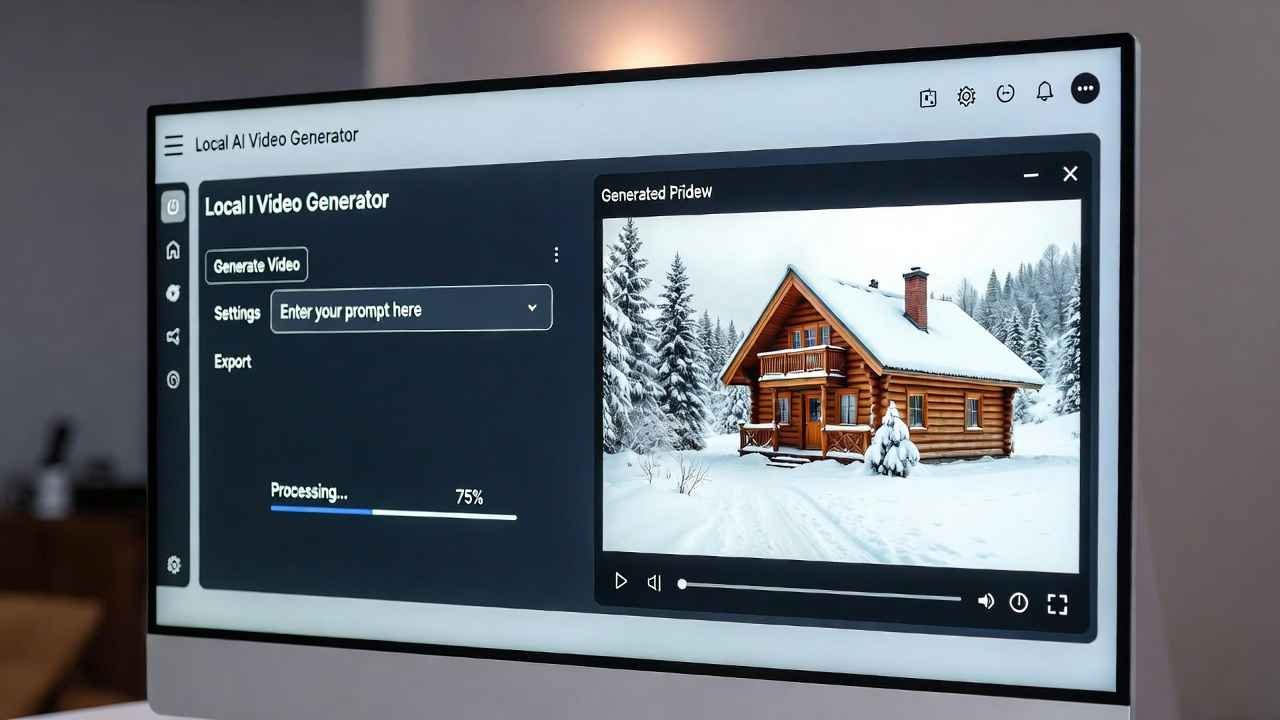
Hey friend, let’s talk real quick about free local AI video generator.
You know those fancy AI video tools everyone raves about? Runway, Pika, Kling – they look amazing until you hit the paywall, credits run out, or your video gets watermarked. In 2026, it’s worse. Prices keep climbing, and privacy? Forget it – everything sits on some company’s servers.
But here’s the cool part I love sharing: you can skip all that drama. You can generate stunning AI videos right on your own PC – totally free, unlimited times, and 100% private. No internet needed after setup, no monthly fees.
I first tried this after watching Kevin Stratvert’s walkthrough (that blew up fast). It changed how I create content. No more waiting for cloud queues or worrying about data leaks. If you’re a YouTuber, marketer, or just someone who loves making short clips, this setup is gold.
Ready to set it up? Let’s walk through it like I’m sitting next to you with coffee.
Why Choose a free local AI video generator in 2026?
Cloud tools charge per second now. A 10-second clip? $1-5 easy. Do that daily, and your wallet cries.
Local setups flip the script:
- Zero ongoing costs after hardware.
- Unlimited generations – queue 50 videos overnight.
- Full privacy – files stay on your drive.
- Customize models, prompts, no censorship.
- Works offline once installed.
Downsides? Needs a decent GPU (NVIDIA best). Takes setup time first run. But after? Super smooth.
In 2026, models like LTX-2 (distilled) run great on consumer cards – think RTX 3060 12GB or better for fast results.
What Hardware Do You Really Need?
Don’t buy a $5000 rig yet. Start simple.
- GPU: NVIDIA with 8GB+ VRAM minimum (RTX 3060/4060 sweet spot). AMD possible but trickier in 2026.
- CPU/RAM: Modern i5/Ryzen 5 + 16GB RAM ok, 32GB better for multitasking.
- Storage: 50-100GB free (models are big – 10-30GB each).
No GPU? Some CPU-only modes exist but sloooow (hours per clip). Stick to GPU.
Pro tip: If upgrading, grab used RTX cards on eBay – prices dropped in 2026.
(Quick host suggestion: Building a new PC for this? Hostinger makes killer VPS too if you want cloud backup later – check plans here: https://hostinger.com?REFERRALCODE=TAMZID99. Great for bloggers too.)
Step-by-Step: Install Your Free Local AI Video Generator
Use Pinokio – it’s the easiest one-click AI launcher in 2026. No coding headaches.
- Download Pinokio Head to https://pinokio.co. Click download for Windows (Mac/Linux too). Install like any app – 2 minutes.
- Open Pinokio & Install Wan2GP Launch Pinokio. Search “Wan2GP” in Discover tab (or paste GitHub link if needed). Click Install. It grabs everything – models, dependencies. Takes 10-30 minutes first time (downloads ~20GB).
- Launch the Tool Once done, click Start. It opens a local web interface in your browser (like http://127.0.0.1:xxxx). No internet after.
- Pick Your Model Go to models section. Choose LTX-2 (distilled version) – fastest for most PCs. Wan base good too for quality.
- Optimize Settings Set resolution: 512×512 or 768×512 start (higher eats VRAM). Steps: 20-30 for speed. Guidance: 7-9. Enable narration if you want voiceover (uses built-in TTS).
- Generate Your First Video Type a prompt: “A cozy cabin in snowy mountains at sunset, gentle snow falling, cinematic lighting.” Add style: realistic, animation. Duration: 5-10 seconds. Hit Generate. Wait 30-120 seconds depending on GPU. Boom – video + audio ready.
- Image to Video Too Upload photo. Prompt: “Animate this cat jumping playfully in a garden.” It brings stills to life.
- Find Your Files All saved locally – usually in Pinokio/apps/wan2gp/outputs. MP4 format, ready to edit.
Queue multiple prompts – set it and forget it while you grab lunch.
Tips to Get Better Results Fast
- Prompts matter: Be descriptive. “Dynamic drone shot of futuristic city at night, neon lights, cyberpunk vibe, 8k quality” beats “city”.
- Use negative prompts: “blurry, low quality, deformed” to avoid junk.
- Experiment models: LTX-2 fast, others more detailed but slower.
- Batch generate: Make variations for social media.
- Add music later: Use free tools or ElevenLabs (affiliate if you try).
Common issues? VRAM error – lower res or close apps. Slow? Update drivers.
Why This Beats Paid Tools in 2026
Paid ones add watermarks on free tiers, limit to 720p, or ban “sensitive” prompts. Local? Your rules.
Plus, as models improve (new ones drop monthly on Hugging Face), update via Pinokio – stay current free.
Creators in USA/Canada love this for quick Reels, TikToks, YouTube shorts without burning budget.
Alternatives If This Doesn’t Fit
- ComfyUI + video workflows (more advanced, customizable).
- Automatic1111 extensions for video.
- InvokeAI newer branches.
But Pinokio + Wan2GP easiest for beginners in 2026.
Final Thoughts
Setting up your own free local AI video generator feels empowering. No more begging for credits or fearing bans. You control everything.
Try it this weekend. Start small – one funny cat video. You’ll get hooked.
Questions? Drop them below. Happy creating!
10 Game-Changing AI Tools for YouTubers in 2025: Skyrocket Your Views Without Breaking a Sweat
How to Create 30-Second Viral AI Image-to-Reels in 2025 & Monetize Fast (Step-by-Step Guide)
FAQs on
What is the best free local AI video generator in 2026?
Pinokio with Wan2GP and LTX-2 model tops the list – easy install, unlimited use, great quality on consumer PCs.
Can I run AI video generation on PC without subscription?
Yes! Open-source tools like Wan2GP let you generate unlimited videos offline after setup – no fees ever.
How much VRAM do I need for local AI video tools?
8GB minimum for smooth runs, 12GB+ ideal for faster higher-res clips in 2026.
Is Pinokio safe for installing AI video models?
Totally – it’s open-source, community-trusted launcher pulling from legit GitHub repos.
How long does it take to generate a video locally?
30-120 seconds per 5-10 second clip on RTX 4060/4070 – depends on settings and model.
Can local AI video tools generate audio too?
Yes, many like LTX-2 add narration, sound effects, and synced audio automatically.
What if my PC doesn’t have NVIDIA GPU?
It’s tougher – CPU mode slow, AMD support improving but NVIDIA still king for speed in 2026.
Are open source AI video tools 2026 better than cloud?
For privacy, cost, and unlimited use – yes. Quality catches up fast with new models.
How do I update models in Pinokio?
Just click refresh or reinstall app in Pinokio – auto-pulls latest versions.
Can beginners use free local AI video generator?
Absolutely – Pinokio makes it point-and-click, no coding needed. Follow steps and experiment!